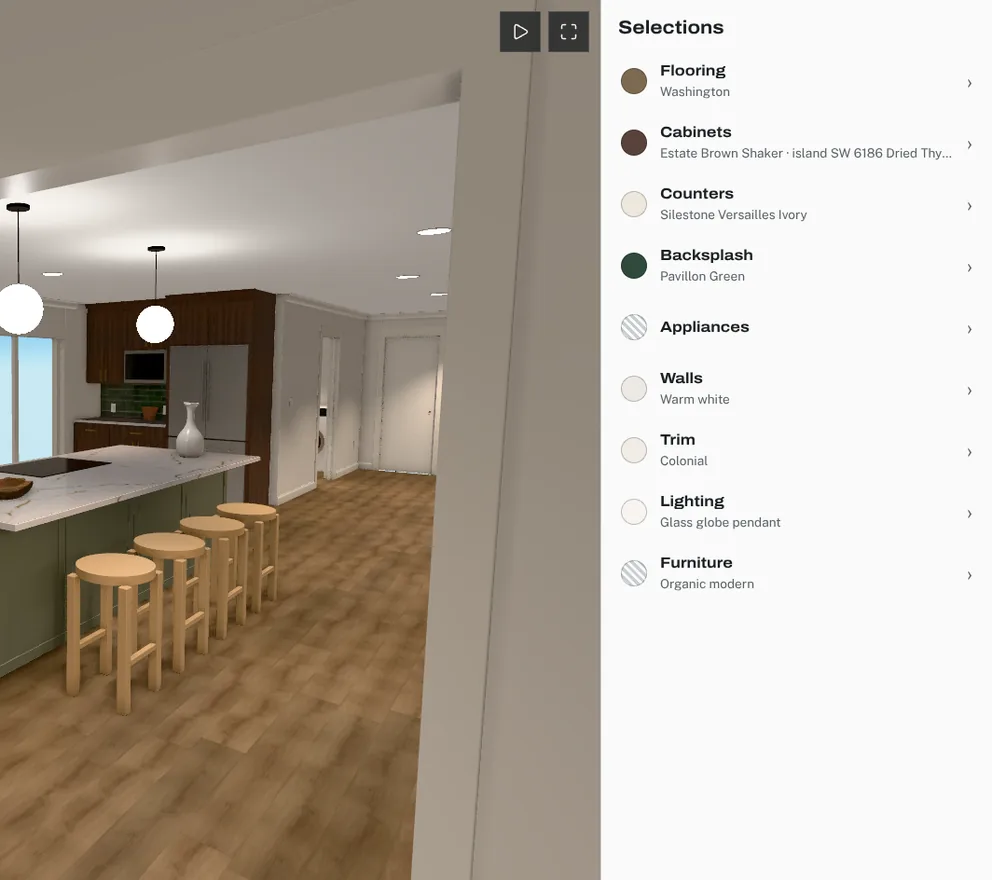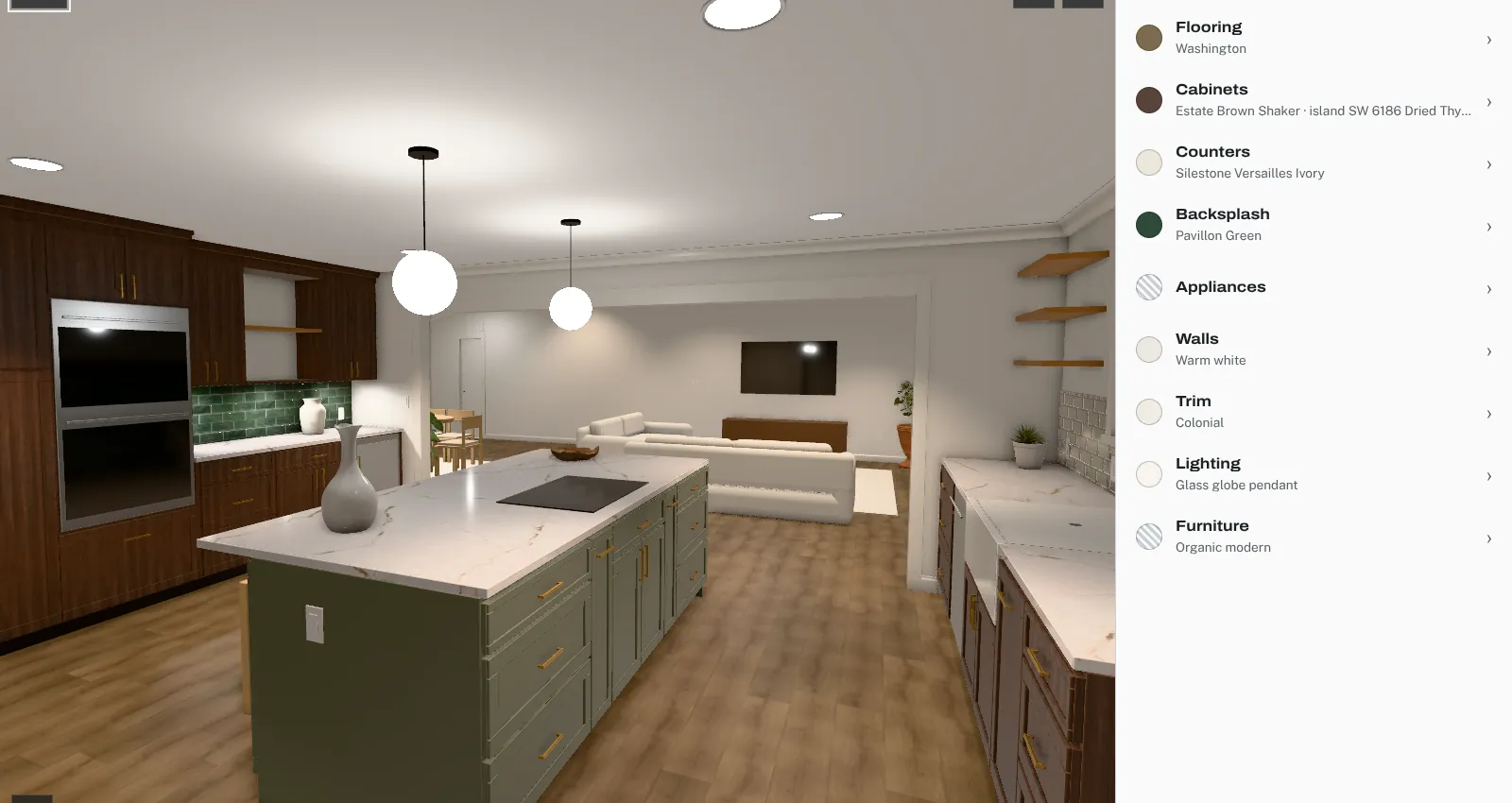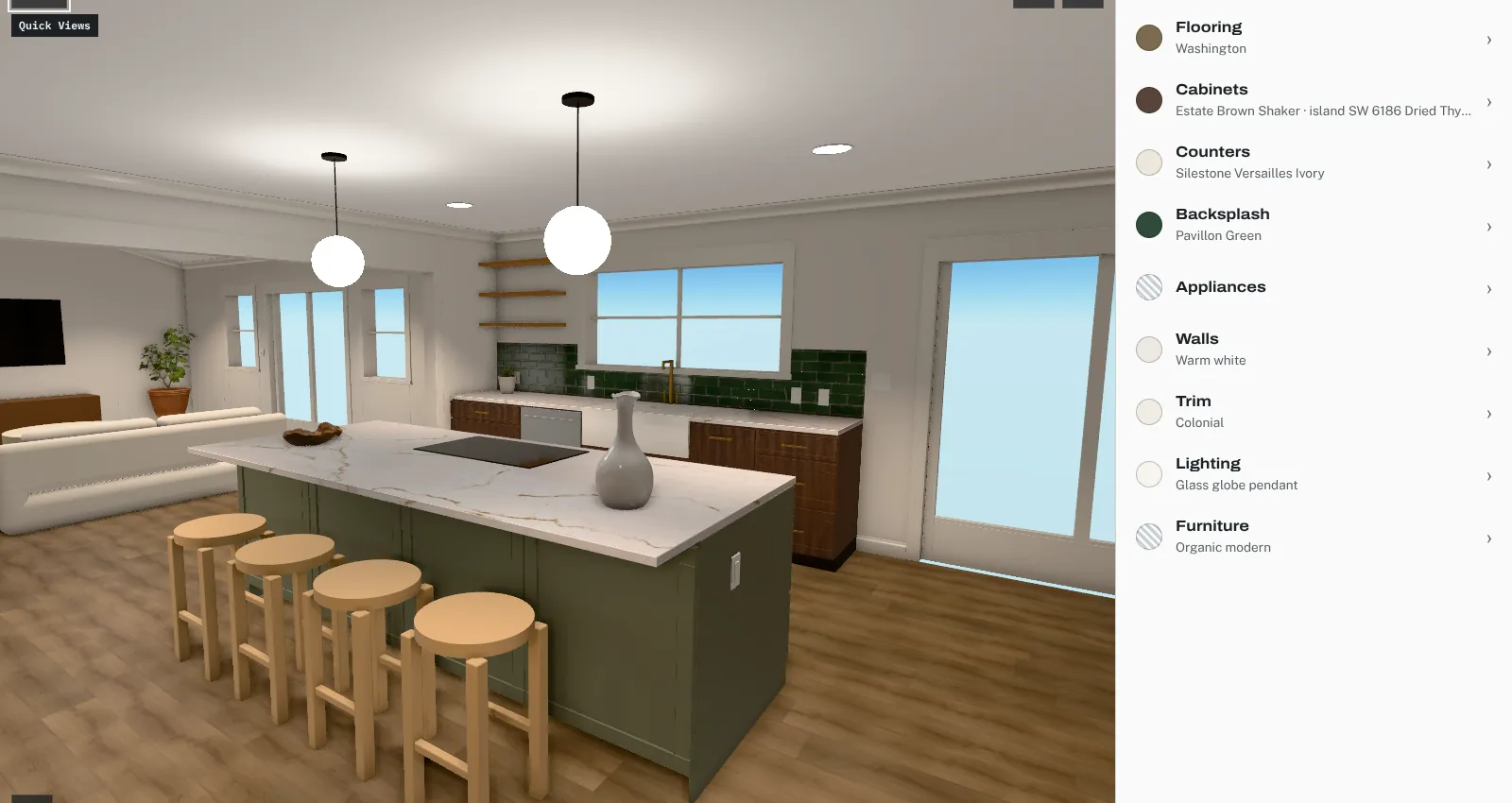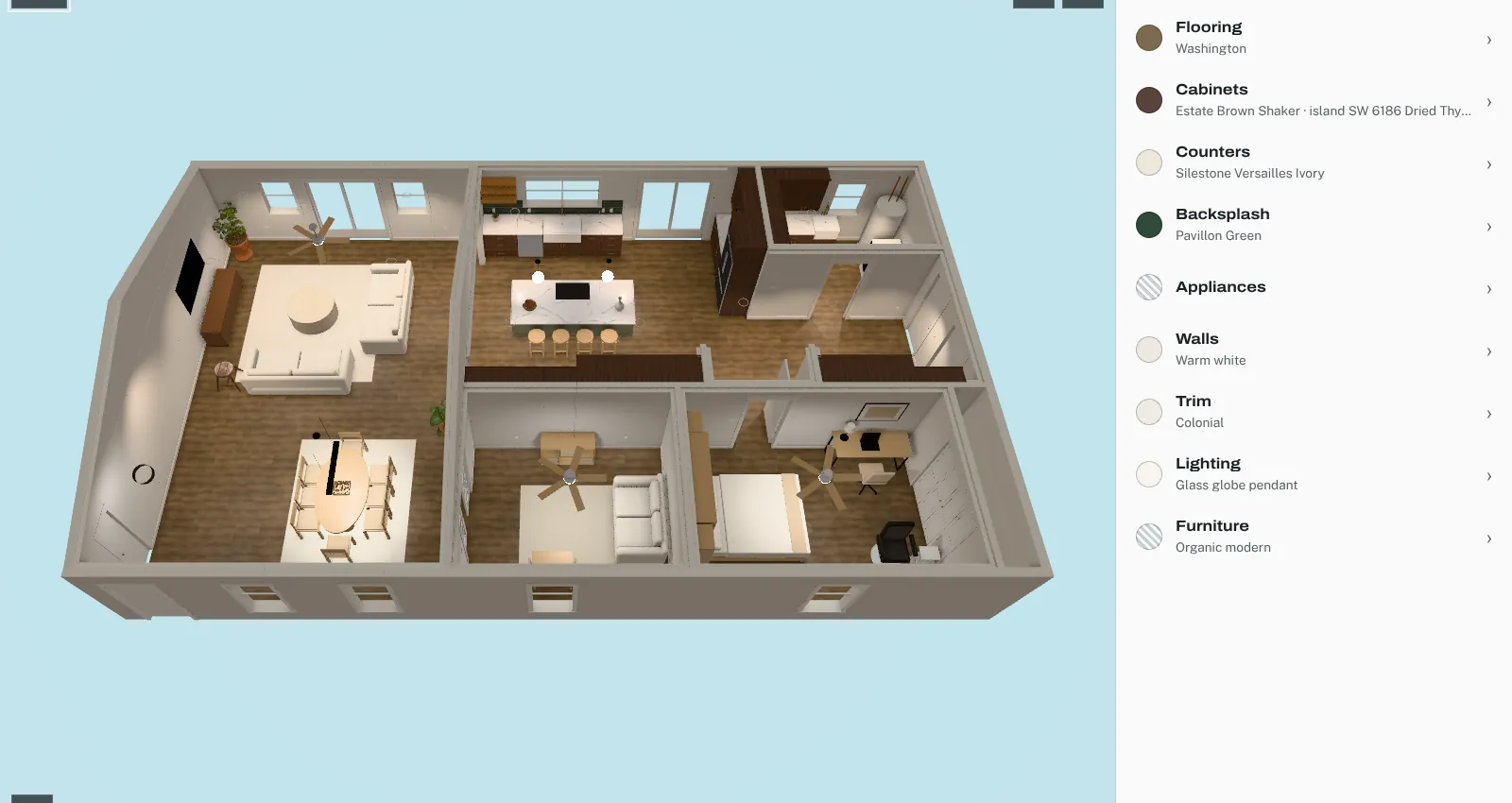
To export a SketchUp model as GLB, choose File > Export > 3D Model, pick GLTF Binary File (*.glb) from the file type list, and click Export. GLB is the single-file, binary form of glTF 2.0, the format most browser 3D viewers load. Before you export, purge unused materials and components, make sure every face has its front side facing out, and give each surface the client will choose a finish for its own material. After you export, open the file in the Khronos glTF Validator and Sample Viewer to confirm it is valid, the right size, and reads correctly from every side.
What the GLB export does
Trimble’s help page for glTF files describes the export in four steps: open File > Export > 3D Model, choose a folder, select GLTF Binary File (*.glb) from the drop-down, and export. The same page covers import, where Preserve Drawing Origin is on by default and keeps the origin from the source file.
A GLB packs everything into one file. The glTF 2.0 specification describes the binary container as a 12-byte header followed by chunks, which lets the JSON description, the binary buffers and the images travel as one file. That is why GLB suits uploads: there is no texture folder to lose.
What carries over from SketchUp
Materials and textures. SketchUp’s writer saves textures as PNG or JPG (JPEG and JPE are also accepted) and tries to convert any other image format to PNG. Emission, occlusion and normal maps are exported, and if a material has no normal map, its bump map is used in its place. SketchUp writes both a metallic-roughness material and a specular-glossiness version, and it combines ambient occlusion, roughness and metalness into one packed texture for the metallic-roughness version. Expect texture file names inside the GLB to change.
SketchUp 2025 added Photoreal Materials, which carry metalness, roughness, normal and ambient occlusion maps, and its release notes say SketchUp can import and export these PBR materials through USD and GLB. A material built that way has more to hand to the viewer than a plain color or a single image.
Units and orientation. glTF fixes both: “The units for all linear distances are meters,” and +Y is up. SketchUp’s help page doesn’t document a units setting for GLB export, so check the scale yourself after export (see below) instead of assuming.
Geometry. glTF stores meshes as triangles only, so faces with more than three sides become triangles. The Khronos 3D Commerce guidelines note that glTF can reuse one mesh across several nodes (instancing), which keeps repeated objects small. SketchUp’s help doesn’t say whether its GLB writer keeps components as shared meshes, so if your model repeats the same cabinet box or chair many times, compare the triangle count and file size in the validator report against what you expect.
What a GLB can’t hold. glTF 2.0 describes scenes, nodes, meshes, materials, textures, cameras and animation. It has no object type for dimension strings, text labels, guides or section planes. SketchUp’s COLLADA export page lists those same items (dimensions, text, guide lines, section planes, scenes, shadows and more) as features that don’t survive export to COLLADA. The GLB page publishes no equivalent list, so check your exported file for leftovers you didn’t mean to send.
What to clean up before you export
Purge unused entities. SketchUp keeps the definitions of deleted components, materials and tags in the file. Trimble’s guidance on bloated models points to Window > Model Info > Statistics > Purge Unused, and notes that SketchUp 2025 and newer asks whether to purge each time you save manually. Unused high-resolution materials are a common source of extra size.
Orient faces. SketchUp faces have a white front and a blue back, and Trimble recommends orienting every front face outward. Use Orient Faces on adjacent faces and Reverse Faces on single faces. This matters on the web because glTF materials are one-sided unless marked double-sided: the spec says that when doubleSided is false, “back-face culling is enabled, i.e., only front-facing triangles are rendered.” A reversed face can show up as a hole in the viewer.
Reduce geometry where it doesn’t show. Trimble’s cleanup advice is to use the fewest polygons that communicate the design, and lowering the segment count on arcs and circles is the easiest way to do it. Imported 3D Warehouse objects, like faucets, stools and light fixtures, are worth checking: their file size and edge count are listed in the model’s description.
Downsize images. Trimble also recommends reducing the resolution of imported images. The validator warns on textures whose dimensions aren’t powers of two, so 1024 or 2048 pixels on a side is a sensible target.
Give every selectable surface its own material. If the model will be used to show finish options, each surface the client chooses for needs a material that no other surface shares. In the kitchen remodel Coffered was built around, the perimeter cabinets and the island were separate choices, so they needed separate materials even though both started as the same wood. The same went for the floor, countertop, backsplash, wall paint and trim. A viewer can only change a finish on a surface it can identify, and a shared material ties surfaces together.
File size and triangle count
The glTF spec sets no triangle limit or file-size limit, and Khronos doesn’t publish one number for the web. Its asset guidelines say a model should have “only as much geometry as necessary,” since more triangles mean more rendering work. They also name the main tools for going further: GPU-compressed textures and the Draco and Meshopt mesh compression extensions.
Measure instead of guessing. The glTF Validator’s report includes totalTriangleCount, totalVertexCount and drawCallCount. The validator counts one draw call per mesh primitive, and in glTF each primitive carries a single material, so a mesh painted with many materials splits into many primitives. Run the report on the first export and again after each cleanup pass, and you’ll see what each change saved. Open the GLB on the slowest phone your clients are likely to use; a smooth result there is the real target.
How to check the file
- Validate it. Drop the GLB onto the glTF Validator. It checks the file against the glTF 2.0 specification, and validation “is performed locally in your browser. Submitted assets are not uploaded,” which matters for client work. Fix errors and read the warnings.
- Look at it. Drag the file into the Khronos glTF Sample Viewer, which accepts local glTF and GLB files. Orbit all the way around, look up at the ceiling and under the counter overhangs, and look for missing faces, dark patches or stretched textures.
- Check the scale. Pick a dimension you know, like a 36”-wide sink base, and confirm it reads as about 0.914 meters in a viewer that shows dimensions. If the whole room is 39 times too large or too small, a unit conversion went wrong somewhere.
- Check the materials. Confirm that each surface you plan to offer options for has its own named material, and that names make sense (“Island paint,” not “Material12”).
Using the GLB in Coffered
Coffered accepts GLB, DAE and FBX uploads. After upload, the designer tags each surface (floor, cabinets, counters and so on) and binds finish options to it, so the cleanup steps above, especially one material per selectable surface, carry straight into that tagging step.
Sources
- Working with GLTF Files, SketchUp Help (Trimble)
- SketchUp Desktop 2025.0 release notes (Trimble)
- Cleaning Up Bloated Models, SketchUp Help (Trimble)
- Purging Unused Entities, SketchUp Help (Trimble)
- Orienting Faces, SketchUp Help (Trimble)
- Importing and Exporting COLLADA Files, SketchUp Help (Trimble)
- glTF 2.0 Specification (Khronos Group)
- Real-time Asset Creation Guidelines (Khronos 3D Commerce Working Group)
- glTF Validator, web tool (Khronos Group)
- glTF-Validator repository and README (Khronos Group)
- glTF-Validator report fields, validation_result.dart (Khronos Group)
- glTF Sample Viewer (Khronos Group)